.png?width=158&height=34&name=Autarco%20logo%20(1).png)
Dealer notifications in Helios help installers, partners and support teams stay informed about system issues and performance-related events. To ensure notifications work correctly, three configuration layers must be set up. These are the dealer profile settings, the notification filters of each dealer web account, and the notification settings on system level.
This article explains how to configure all three layers so dealer notifications are delivered correctly.
how to enable end-user notifications in Helios
How dealer notifications work in Helios
Dealer notifications are only sent when all required settings are enabled. The dealer profile defines a general alert email address that acts as an aggregator. Individual dealer web accounts then decide which alerts they want to receive, and finally each system must explicitly allow dealer notifications.
If one of these layers is missing or disabled, notifications will not be sent.
Configure the dealer profile settings
The dealer profile contains a central alert notification email address. This address receives alerts for all systems linked to the dealer account and is typically used as a shared inbox or support address.
Steps
-
Log in to Helios with an administrator account.
-
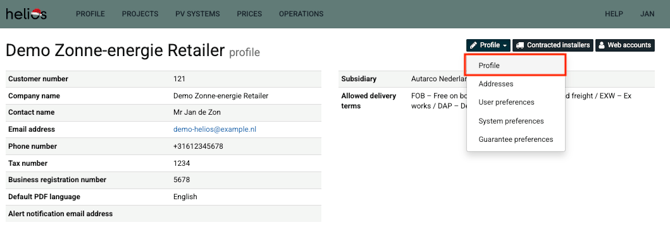
Open your Dealer Profile > Profile tab > Profile.
-
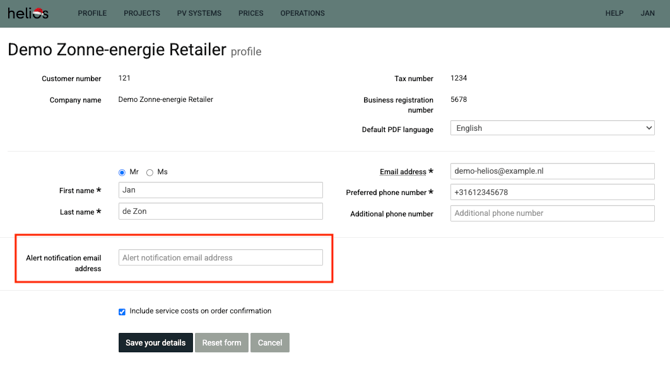
Locate the field “Alert Notification Email Address”.
-
Enter the email address that should receive all system alerts.
-
Click Save your changes.
This email address functions as an aggregator and is independent of individual dealer web account notifications.
Set Notification Filters for Each Dealer Web Account
Each dealer web account can define which systems and alert types they want to receive. If a web account does not enable notifications for a system, no alerts will be sent to that user, even if alerts are generated.
Steps
-
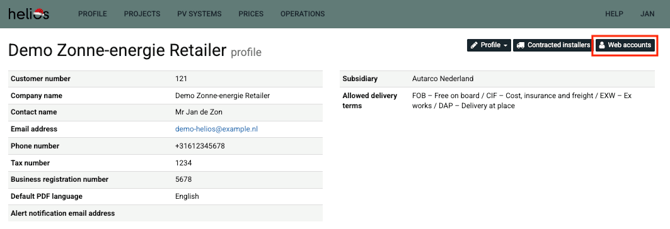
Open Dealer Profile > Web accounts.
-
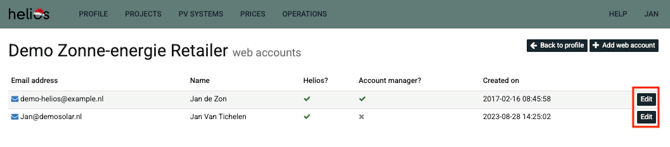
Select Edit for the web account you want to configure.
-
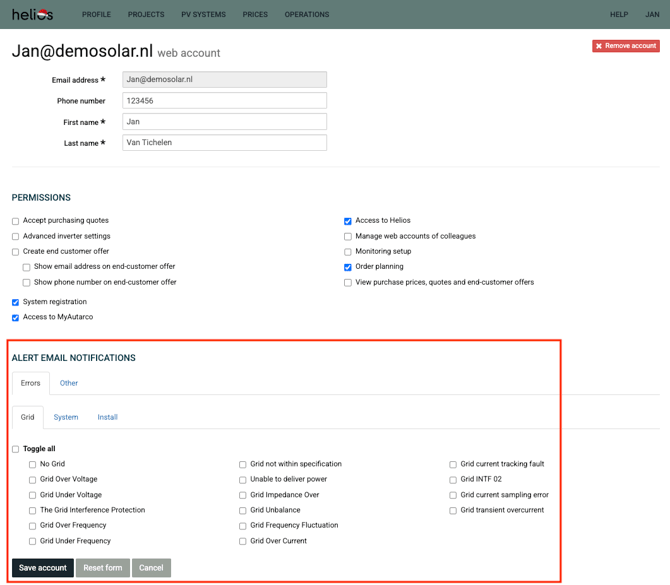
Find the Alert Email Notification section.
-
Select the system(s) and alert type(s) the user should receive.
-
Save your changes.
Dealer notifications for a user only work if at least one system is enabled for alerts at system level.
Enable system-level notification settings
Each system has its own notification configuration. Dealer web accounts can only receive alerts if dealer notifications are enabled on the system itself.
Steps
-
Navigate to the specific system in Helios.
-
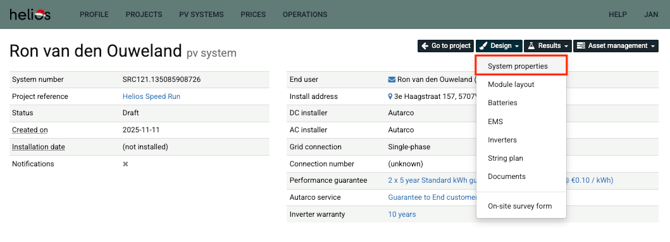
Open Design > System Properties.
-
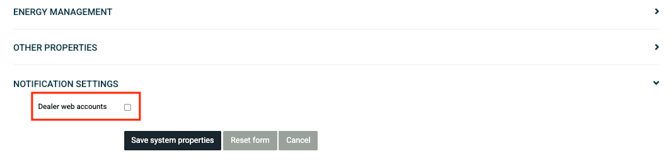
Unfold the Notification Settings section.
-
Find the checkbox “Dealer web accounts”.
-
Enable the checkbox Dealer web accounts.
-
Save the system settings.
Once enabled, the system will send notifications only to dealer web accounts that have selected alerts in their personal notification filters.
Summary
Dealer notifications in Helios require configuration on three levels: the dealer profile, the dealer web account, and the system itself. When all three are set correctly, alerts are delivered reliably to the right recipients. This ensures system issues are identified quickly and handled efficiently by the appropriate team.