.png?width=158&height=34&name=Autarco%20logo%20(1).png)
This article explains how to upgrade the firmware of your communication stick remotely.
Upgrading may be necessary if you intend to use TCP/IP communication for EMS purposes, as this functionality is only supported in the latest firmware versions.
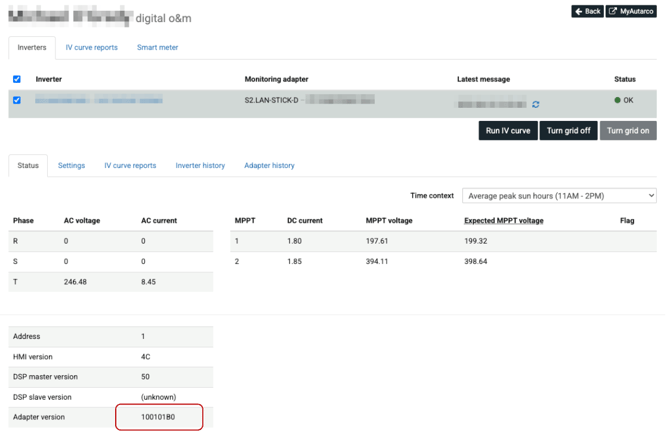
To access the upgrade button, navigate to System > Asset management > Digital O&M. On the digital O&M page, you’ll find the upgrade button near the adapter version section under status tab.
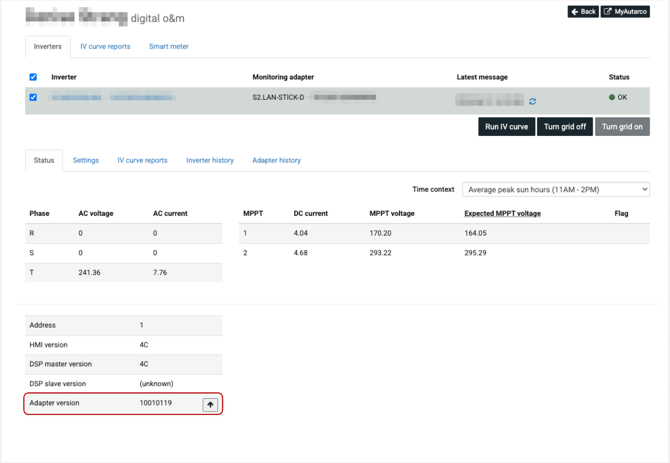
This button allows you to update the firmware on your communication stick, but it will only appear if the version currently installed is older than the latest available firmware.
⚠️ Note: At the moment, firmware upgrades are only supported for the LAN-Stick-D. Support for other stick types will be added soon.
When should you upgrade
We recommend only upgrading if it's truly necessary. If your system is working properly, there's no need to update. However, if you require the latest features, such as faster TCP/IP communication for EMS, then upgrading to the latest firmware can offer clear benefits.
What to expect during the upgrade
-
The upgrade usually takes around 5 minutes, but may take longer depending on the quality of your network connection.
-
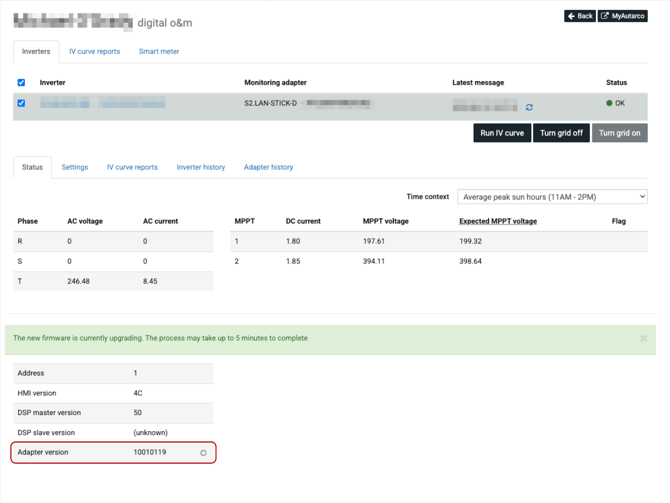
Once the upgrade begins, a loading icon will appear where the upgrade button was located.
-
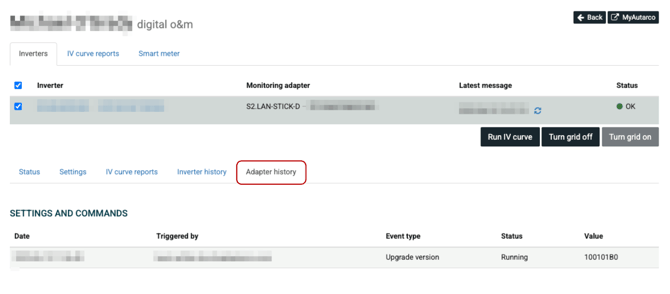
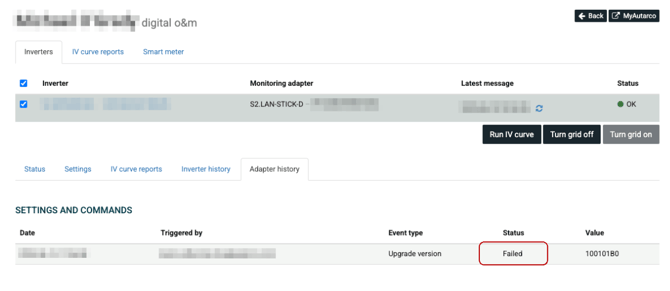
You can track the progress of the upgrade in the adapter history tab.
How to confirm the upgrade was successful
Once the upgrade is complete:
-
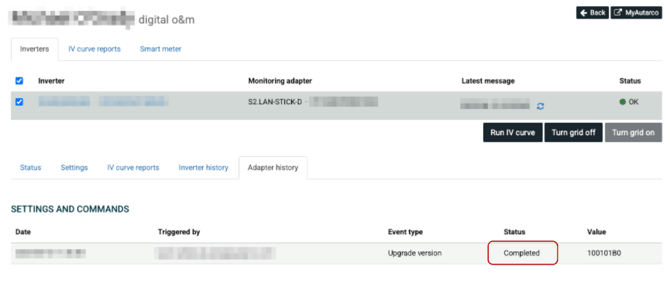
The status in the adapter history tab will change to reflect that the update finished successfully.
-
The adapter version will update to show the latest firmware version that is installed.
How to confirm the upgrade was NOT successful
- The status in the adapter history tab will change to reflect that the update failed.
- Near the adapter version section will show upgrade button again and the version currently installed.